Backups Make Everything Better

I have been seeing posts more and more frequently from frustrated users blaming a provider for losing their data. There are numerous scenarios. Sometimes an account is disabled due to being hacked and sending out spam. Other times the user was actively misusing the service. Sometimes the service provider was breached and all of the servers were encrypted with ransomware. Power outages, government seizures and in rare cases, datacenters going up in smoke can all lead to data loss. But only naive fools believe a service provider will avoid all possible catastrophes.

Whatever the cause, the end result is the same – your data is no longer accessible. It’s easy (and lazy) to blame someone else. Why didn’t they have redundant power? Why didn’t they have better security? Why didn’t they give me temporary access to my data after my server was spamming everyone? Why didn’t they spend thousands of dollars to fight the government subpoena to protect my $7/year service?

You are responsible for your data. It’s usually included as part of the terms of service, but even if it’s not, the reality remains the same. When it comes down to it, no one cares about your data except you. If you want to keep it safe, back it up.

The beautiful thing is when you have automated, regular backups, they turn what could have been disasters into mild annoyances. If something happens, you set up a new server, restore from backups and you’re on your way with no data loss.

If you don’t back up your data, then you think it’s not worth preserving. So please stop whining when it’s gone.

Local Docker Port Exposed

If you’re using docker with ufw (Ubuntu Firewall), your local ports may be exposed to the outside world. I recently read about this issue and when I checked, sure enough, the local ports of all of my docker containers were readily accessible.

It felt like being caught with my fly down. Why in the world docker does this by default is beyond me. And it’s not as if they’re not aware of it. This GitHub issue clearly lays out the problem. It’s disappointing the issue has existed for so long and the Docker team isn’t willing to fix it. It’s a major violation of the secure by default principle.

If you too are learning about this, here’s the fix.

1. Create /etc/docker/daemon.json if it doesn’t already exist
2. Add the following content to the file

{
  "iptables": false
}

3. Restart docker sudo service docker restart

Who knows if there are other docker vulnerabilities I’m not aware of, but at least in this case, my servers have zipped up.

Update: I discovered that disabling iptables has the side effect of blocking outgoing network requests from your containers due to ufw’s default behavior. If this creates a problem, you can leave iptables enabled, but bind your ports to localhost. For example, instead of using 3001:3001 for your ports, use localhost:3001:3001. Alternatively, you can make ufw allow outbound requests.

How to Speed Up Ansible Playbooks

If you’re using Ansible to maintain server configurations, you’re probably quite aware that speed is not something often used to describe Ansible. But I recently came across a plugin that had an amazing 82% performance improvement. And it took a single command and two lines in the ansible.cfg.

The plugin is Mitogen, more specifically Mitogen for Ansible.

On my Ubuntu Ansible controller server I installed it with pip3 install mitogen, then added these two lines to ansible.cfg:

strategy_plugins = /usr/local/lib/python3.8/dist-packages/ansible_mitogen/plugins/strategy
strategy = mitogen_linear

Now a simple playbook that used to take 45 seconds takes 7 seconds. And a larger playbook that used to take ~3 1/2 minutes finished in just over 32 seconds. It’s rare to get such a massive performance improvement without any downsides (at least none I’m aware of).

So if you’re a fellow Ansible user, I highly recommend adding Mitogen.

Chrome 85 Causing Login Failures

Google Chrome recently updated to Version 85.0.4183.83 on my machines, but unlike most updates, there was a rather unfortunate downside to the update. I was no longer able to log in to certain web sites. The problem manifested in two ways that I saw. One, an infinite redirect loop and two, a failed login even though I’d entered valid credentials.

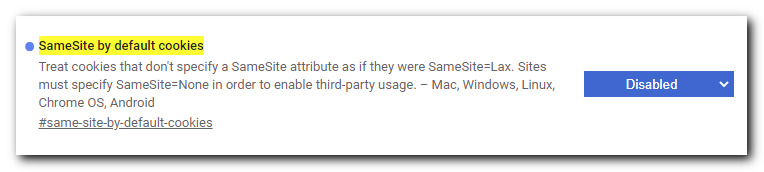
The fix was not at all obvious, hence this blog post. I had to disable the “SameSite by default cookies” flag.

Chrome flag SameSite by default cookies disabled

1) Open this URL in Chrome: chrome://flags/#same-site-by-default-cookies

2) Select “Disabled” in the dropdown.

3) Restart Chrome (the entire browser, not just the tab or window)

I was able to log in to the aforementioned sites in Firefox, so my guess is the Chrome team is using their monopoly to push a more restrictive security feature that ends up breaking sites that haven’t gotten the memo. Hopefully this is a temporary fix and the flag can be enabled again once sites realize their users can’t log in with Chrome.

Cleaning Up The Web

As web pages get more cluttered, even ad blockers don’t cut it. Medium.com pages are particularly hard to read with the huge notice they add on the bottom of the page, covering up the content and making it difficult to read.

My solution has continued to work surprisingly well for the past few years. It’s a bookmarklet that removes all sticky elements (ones that stay visible when you scroll).

The -sticky bookmarklet in action
The bookmarklet in action on a random Medium.com page

To use it, drag the link below to your browser’s bookmarks bar then click on it whenever a web page looks a little cluttered.

-sticky